
The grid is the daily workspace for data editing. Object tabs switch between custom objects, companies, contacts, opportunities, and projects. The active object name and record count stay visible above the sheet.
Use the Grid / Board switch above the view tabs when you want a Kanban workflow instead. The two modes keep separate saved views and layouts. See Kanban boards.
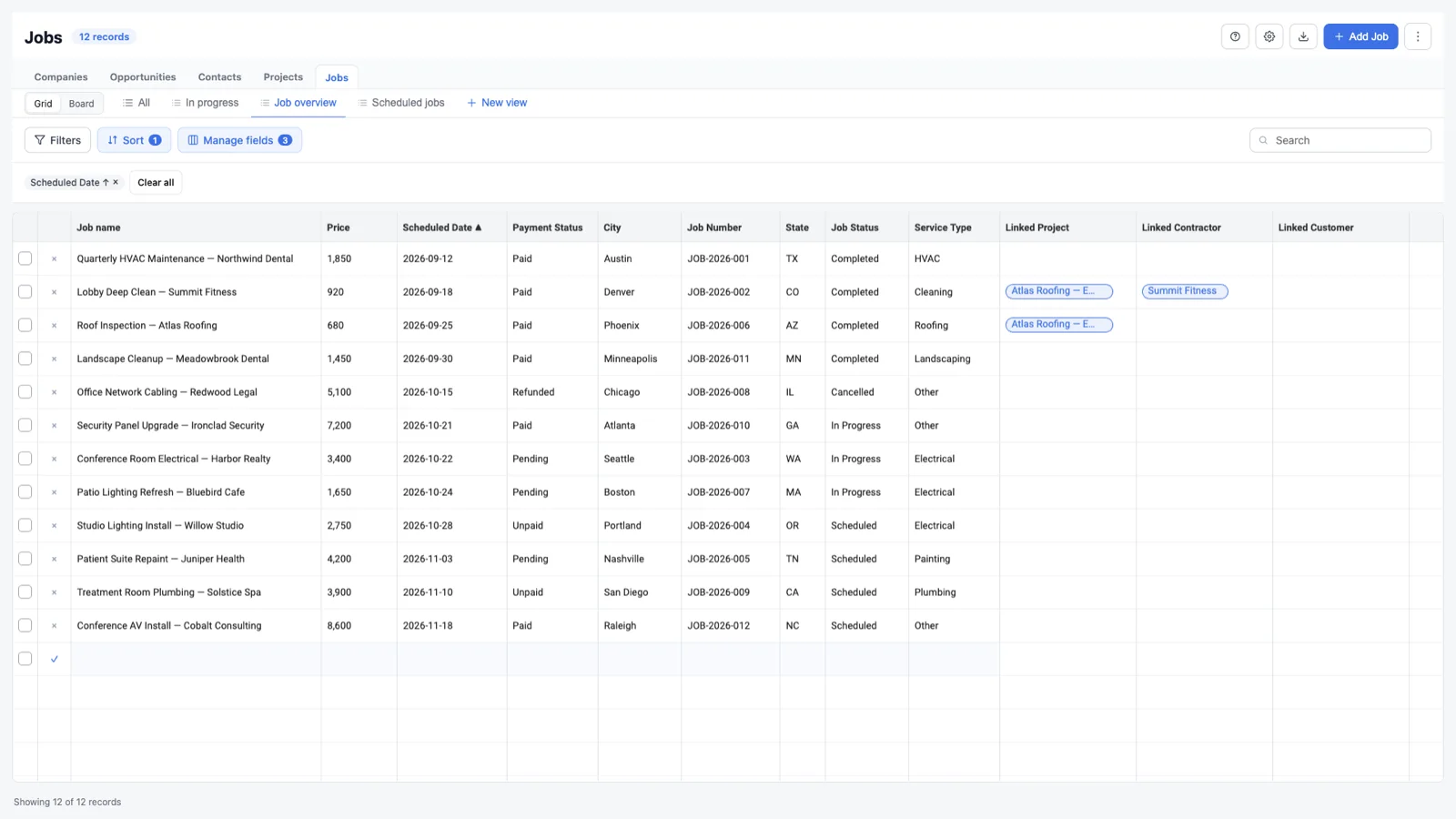
Edit a cell
- Click a cell or use the keyboard to move to it.
- Type the new value.
- Press Enter or click away to save.
- Press Escape to cancel the edit.
The row updates as the save completes. A failed field value is highlighted and the error is shown so you can correct it without leaving the grid.
Changes from other users
GridLane checks for record updates and deletes every few seconds while the tab is open. If another person changes or deletes a loaded record in HighLevel or another GridLane window, that row updates or disappears in place.
Updates are not applied to a record while it has a save in progress. New records are not inserted automatically yet; refresh the object to see records created elsewhere.
Companies use a page-level polling fallback because HighLevel does not expose a company-specific webhook event. Updates and deletes still appear within a few seconds for the loaded company rows.
Create a record
Choose Add [record] to open a draft row at the bottom of the sheet. If the object has no records, the grid still renders with one empty row and a hint, so you can start immediately.
Fill the required fields and choose Save row. Cancel discards the draft. Required fields must be filled before the record can be saved.
Search the grid
The search box filters the rows currently loaded in the grid. When a large object has more records than the loaded page, use Load more to include more rows before relying on a filter or search.
For exact field-based filtering, use the Filters and Sort controls described in Views, filters, and saved views.
Delete and duplicate
- Use the row action to delete a single record.
- Select multiple rows and use the bulk bar for duplicate or delete actions.
- Bulk changes are applied with progress reporting and can be undone from the toast.
- Deleting a record removes it from HighLevel; use this action carefully.
Export CSV
Use the download action in the header to export the visible records and columns. The export respects the current view and loaded data. See Views, filters, and saved views for how the visible grid is assembled.
Keyboard workflow
GridLane supports keyboard navigation between cells, Enter to confirm an edit, Escape to cancel, and copy/paste between cells. Use the table shortcuts shown in the in-app Help panel when you need a reminder.